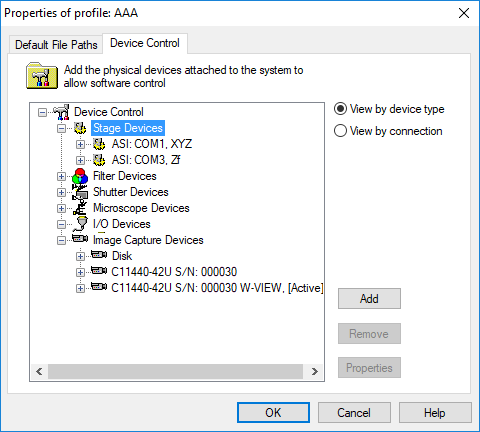
Motorized Stage control devices are supported from a number of manufacturers. Each product is likely to vary slightly in resolution, speed of travel, repeatability and other characteristics related the sample and mounting media.
Use the following steps to add, setup and calibrate a stage:
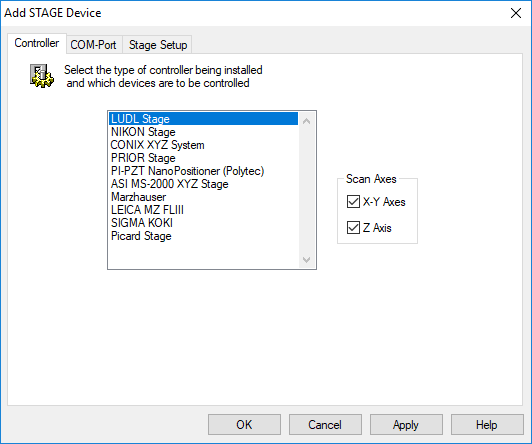
The Controller tab displays all of the motorized stages that HCImage supports. The controllers are listed by manufacturer. If the type of Controller includes more than one specific device, a drop-down list will appear below the list with supported devices. Next, select the scan axes to control. Often the X-Y axes and the Z axis are controlled by different devices, as is the case with motorized microscopes or when using a piezo.
Select the COM port for RS-232 communications. The Baud Rate and other communications parameters must be correctly set to achieve proper control. Check the manufacturer’s documentation and specifications first. The default values are likely to be correct, but may not be in all cases.
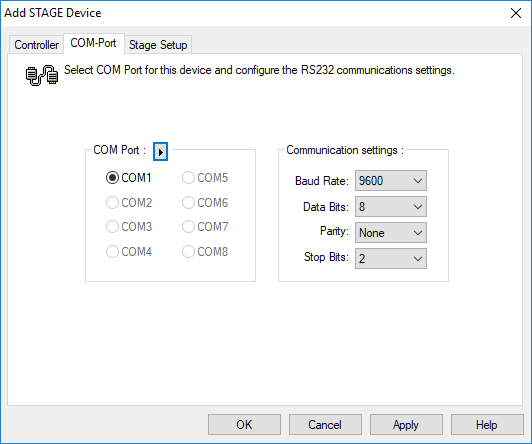
Using the button next to the "COM Port" buttons group label will scan for available COM-Ports.
Note: In some cases, the COM port may be shared with another device (filter, shutter, stage, etc.) that uses the same controller or may be in use by a different device.
The Stage Setup tab will differ for each of the manufacturers as well as the enabled scan axes. The Step Size, and other parameters must be correctly set to achieve proper control. Check the manufacturer’s documentation and specifications first. The default values are likely to be correct but may not be in all cases.
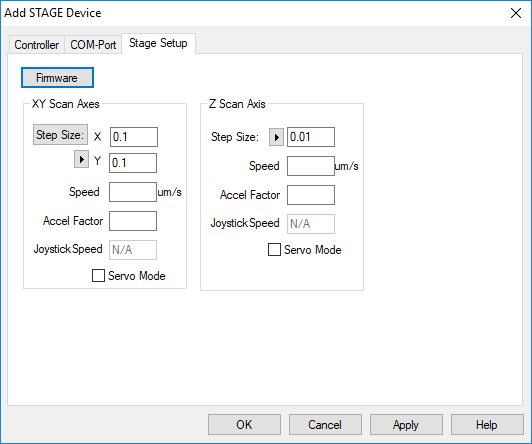
The Stage Setup is also available through the Device Pane in the XYZ Setup Panel.
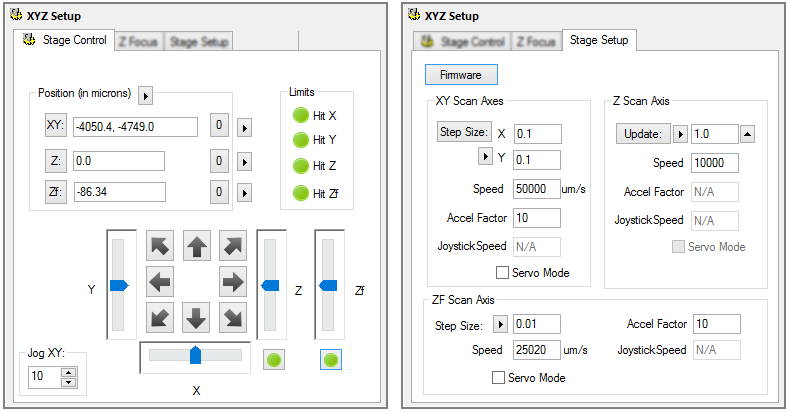
For Stage devices with X and Y scan axes the configurable properties include:
For Stage devices with a Z-scan axis, the Z-axis properties can be configured separately.
Note: The top-right most button in this screen retrieves the hardware firmware version.
It is highly recommended to Calibrate the XY stage to precisely define the step size of the device in the target environment. The manufacturer’s calibration may be a nominal estimate. Before calibrating the stage, make sure to load the correct scale factor for the selected objective and then follow the instructions below.
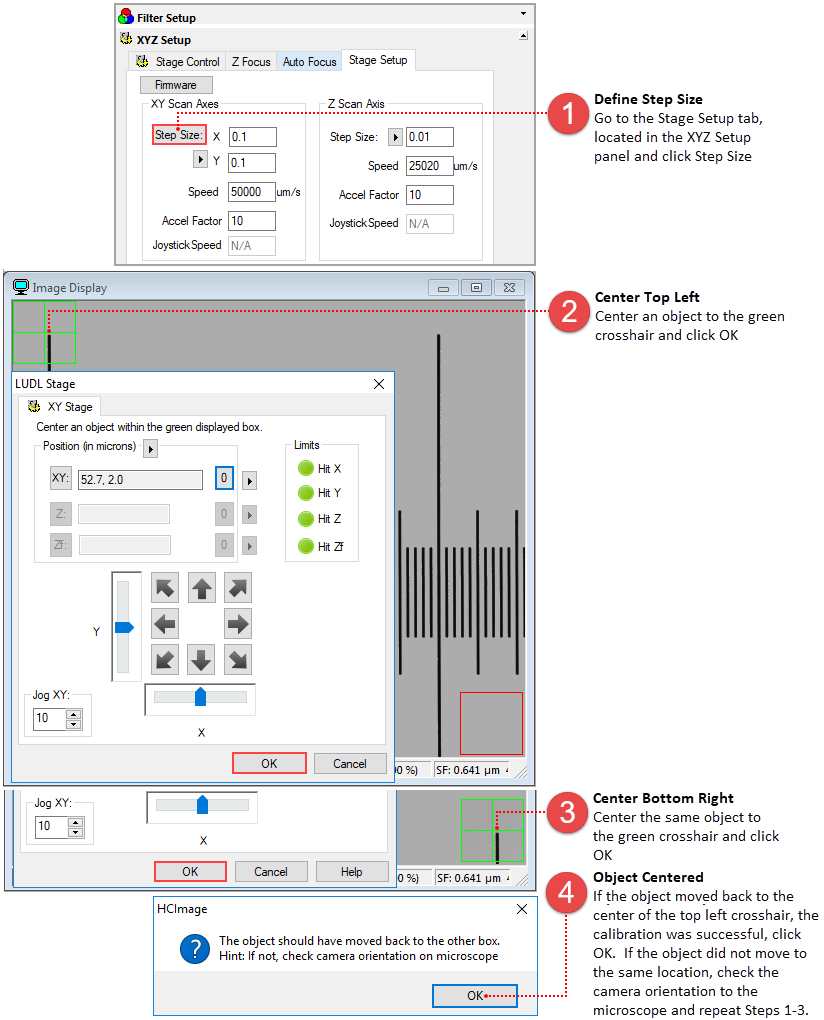
The step size created should approximate the manufacturer’s specifications. If the numbers are negative, this simply means that the capture device is rotated compared to the XY stage motor directions. If positive numbers are required, either change the controller hardware settings, or rotate the capture device to correct it. Subsequent scan patterns will be positioned below and to the right of the current image.
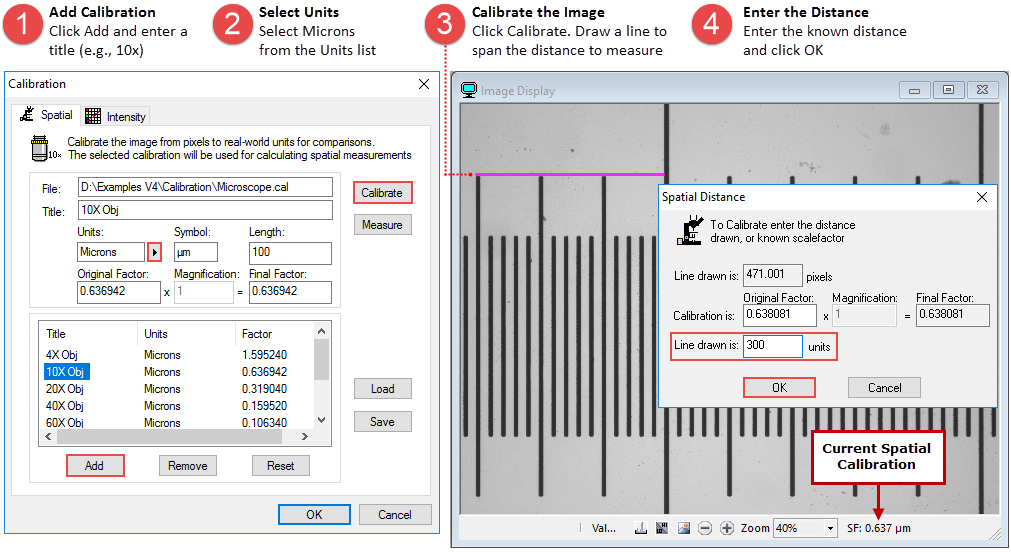
Open or capture an image with some known distance, for example a micrometer. Click on the Calibration Properties icon ( ) on the Analysis toolbar and follow the instructions below.
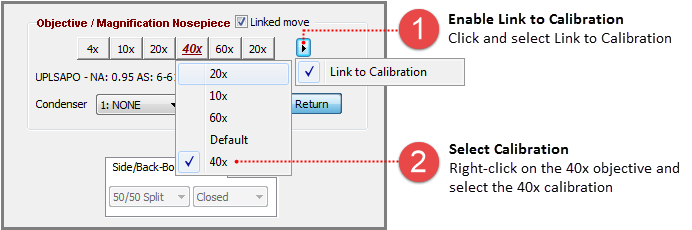
To link the calibration to an objective, go to the Microscope Setup panel in the Devices pane and follow the steps below.
Once Stage communication has been configured in the Profile, press Apply to verify the device in the Apply Stage Dialog. The installed stage's interactive testing dialog will be identical to the Stage Setup pane available on the Device tab. During Interactive Stage Testing, the active camera device enters Live Mode for immediate feedback on stage positioning.
HCImage can support two Z motors. This allows for separate coarse and fine focus drives, and is ideal for multi-site scans with auto-focus. The steps for adding a second Z motor are the same with a note that the second Z is considered the fine focus Z and is labeled Zf.