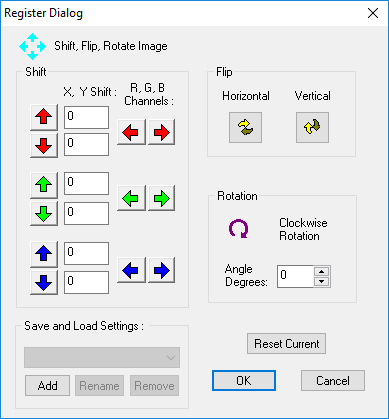
Color images may exhibit a misregistration between image components caused by vibration, movement between sequential image captures or by misalignment of optical components. Image Registration allows image components to be shifted on a per pixel basis in X or Y to accurately register the components in the image. The shift is applied directly to the view.
Use the arrow keys to move the image component by single pixels, or enter the shift numerically for larger values.
Vertical Flip - Create a mirror image about the vertical mid point.
Horizontal Flip - Create a mirror image about the horizontal mid point.
Rotate the image clockwise by 90, 180, or 270 degrees or by any angle – with interpolation.
Reset shift, flip and rotation values to default settings.
You can name and save registrations setting to be used across multiple documents. Once saved, these settings will be remembered the next time you run HCImage.
Click Rename to change the name of the selected settings. You will be able to add multiple sets of Registration settings and switch between them by changing your selection in the drop-down list. These settings will exist until Removed.
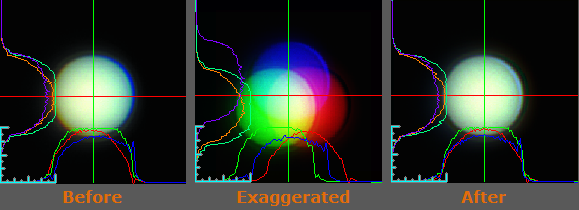
The first example below shows a 4 micron bead before and after Registration. The Intensity Profile Layer shows misregistration of the color components. The middle image is an exaggerated representation of the process.
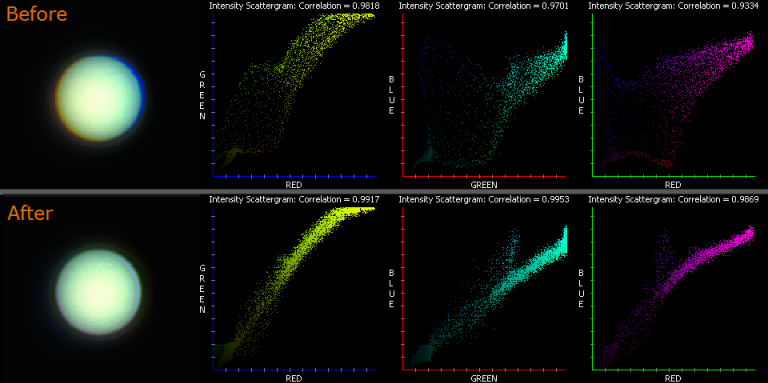
The second example uses the Intensity Scattergram to show a 4 micron bead before and after registration.